前言
在 C# 开发中常常面临一类棘手问题:如何让程序自动操作那些没有开放 API 的 Windows 应用?
比如批量处理记事本文件、自动化填写老旧桌面软件表单,或对封闭系统进行回归测试。传统方法要么依赖第三方接口(很多软件根本不提供),要么靠人工重复点击——效率低、易出错、难维护。
其实,Windows 早已内置了一套强大的"秘密武器":UI Automation。可以允许你的 C# 程序像真人一样识别窗口、定位按钮、输入文字、点击保存,真正实现"所见即所得"的自动化。
本文将通过一个完整的记事本自动化实战案例,带你从零掌握这项被低估却极其实用的技术。
正文
UI Automation 是微软官方提供的可访问性技术,最初为辅助功能设计,但因其通用性和稳定性,逐渐成为桌面自动化的首选方案。
它不依赖应用是否开放接口,只要界面元素能被 Windows 识别(几乎所有标准 Win32、WPF、UWP 应用都支持),就能被程序操控。
核心思路
将每个 UI 元素(如窗口、按钮、文本框)视为一个带有属性和模式的对象,通过条件筛选找到目标控件,再调用其支持的操作(如点击、输入、获取文本)。
整个过程无需图像识别,性能高、可靠性强。
以下是一个典型的项目配置,确保能调用 UI Automation COM 组件:
<ProjectSdk="Microsoft.NET.Sdk">
  <PropertyGroup>
    <OutputType>Exe</OutputType>
    <TargetFramework>net8.0</TargetFramework>
    <UseWindowsForms>true</UseWindowsForms>
</PropertyGroup>
<ItemGroup>
    <COMReferenceInclude="UIAutomationClient">
      <WrapperTool>tlbimp</WrapperTool>
      <Guid>944de083-8fb8-45cf-bcb7-c477acb2f897</Guid>
    </COMReference>
</ItemGroup>
</Project>
关键在于封装一套健壮的查找与操作工具。例如 ElementFinder 类,提供了带超时重试的控件查找逻辑,避免因界面加载延迟导致失败:
publicstaticclassElementFinder
{
    privatestaticreadonly IUIAutomation _automation = new CUIAutomation();

    publicstatic IUIAutomationElement GetDesktop()
    {
        return _automation.GetRootElement();
    }

    publicstatic IUIAutomationElement? FindElementSafely(
        IUIAutomationElement parent,
        IUIAutomationCondition condition,
        TreeScope scope,
        int timeoutMs = 5000)
    {
        var endTime = DateTime.Now.AddMilliseconds(timeoutMs);

        while (DateTime.Now < endTime)
        {
            try
            {
                var element = parent.FindFirst(scope, condition);
                if (element != null) return element;
            }
            catch (COMException)
            {
                // UI可能正在变化,继续重试
            }
            Thread.Sleep(100);
        }
        returnnull;
    }

    publicstatic IUIAutomationElement? FindFirstByControlType(
        IUIAutomationElement parent,
        int controlTypeId,
        int timeoutMs = 3000)
    {
        var condition = _automation.CreatePropertyCondition(
            UIA_PropertyIds.UIA_ControlTypePropertyId, controlTypeId);
        return FindElementSafely(parent, condition, TreeScope.TreeScope_Subtree, timeoutMs);
    }
}
对于文本输入,尤其在 Windows 11 新版记事本中,传统 SendKeys 可能失效。因此采用更底层的 keybd_event API 模拟键盘事件,确保中英文、大小写、快捷键都能准确发送:
publicstaticclassKeyboardHelper
{
    [DllImport("user32.dll")]
    privatestaticexternvoidkeybd_event(byte bVk, byte bScan, uint dwFlags, UIntPtr dwExtraInfo);
    [DllImport("user32.dll")]
    privatestaticexternshortVkKeyScan(char ch);
    privateconstuint KEYEVENTF_KEYUP = 0x0002;
    privateconstbyte VK_CONTROL = 0x11;

    publicstaticvoidSendText(string text)
    {
        foreach (char c in text)
        {
            if (c == '\r') continue;
            SendChar(c);
        }
    }

    publicstaticvoidSendChar(char character)
    {
        short vkKey = VkKeyScan(character);
        byte virtualKey = (byte)(vkKey & 0xFF);
        bool needShift = (vkKey & 0x0100) != 0;
        if (needShift)
            keybd_event(0x10, 0, 0, UIntPtr.Zero); // Shift down
        keybd_event(virtualKey, 0, 0, UIntPtr.Zero); // Key down
        keybd_event(virtualKey, 0, KEYEVENTF_KEYUP, UIntPtr.Zero); // Key up
        if (needShift)
            keybd_event(0x10, 0, KEYEVENTF_KEYUP, UIntPtr.Zero); // Shift up
        Thread.Sleep(10);
    }

    publicstaticvoidSendCtrlS()
    {
        keybd_event(VK_CONTROL, 0, 0, UIntPtr.Zero);
        SendChar('s');
        keybd_event(VK_CONTROL, 0, KEYEVENTF_KEYUP, UIntPtr.Zero);
    }
}
主业务逻辑 NotepadAutomation 整合了打开、输入、保存、关闭全流程,并针对不同版本记事本做了兼容处理——例如 Windows 11 使用 RichEditD2DPT 类名而非传统 Edit 控件:
publicclassNotepadAutomation
{
    private Process? _notepadProcess;
    private IUIAutomationElement? _notepadWindow;

    publicboolRunTest()
    {
        try
        {
            if (!OpenNotepad()) returnfalse;
            if (!InputRandomText()) returnfalse;
            if (!SaveFile()) returnfalse;
            if (!CloseNotepad()) returnfalse;
            Console.WriteLine("✅ 自动化任务完成!");
            returntrue;
        }
        catch (Exception ex)
        {
            Console.WriteLine($"❌ 执行失败: {ex.Message}");
            returnfalse;
        }
        finally
        {
            CleanUp();
        }
    }

    privateboolInputRandomText()
    {
        if (_notepadWindow == null) returnfalse;
        var editControl = ElementFinder.FindFirstByControlType(
            _notepadWindow, UIA_ControlTypeIds.UIA_EditControlTypeId, 2000);
        if (editControl == null)
        {
            editControl = ElementFinder.FindByClassName(_notepadWindow, "RichEditD2DPT", 3000);
        }
        if (editControl == null)
        {
            Console.WriteLine("⚠️ 未找到编辑控件,使用直接输入模式");
            return InputTextDirectlyToWindow();
        }
        editControl.SetFocus();
        Thread.Sleep(500);
        var textLines = GenerateRandomTextLines(10);
        var fullText = string.Join(Environment.NewLine, textLines);
        return TryInputText(editControl, fullText);
    }

    privateboolSaveFile()
    {
        _notepadWindow?.SetFocus();
        KeyboardHelper.SendCtrlS();
        Thread.Sleep(3000);
        var desktop = ElementFinder.GetDesktop();
        var saveDialog = FindSaveDialog(desktop);
        if (saveDialog == null)
        {
            Console.WriteLine("❌ 未找到保存对话框");
            returnfalse;
        }
        var fileName = $"AutoTest_{DateTime.Now:yyyyMMddHHmmss}.txt";
        var fileNameEdit = FindFileNameEditBox(saveDialog);
        if (fileNameEdit != null && !IsSearchBox(fileNameEdit))
        {
            fileNameEdit.SetFocus();
            Thread.Sleep(300);
            KeyboardHelper.SendCtrlA();
            KeyboardHelper.SendText(fileName);
        }
        var saveButton = ElementFinder.FindButton(saveDialog, "Save", 2000) ??
                        ElementFinder.FindByAutomationId(saveDialog, "1", 2000);
        if (saveButton != null)
        {
            ClickElement(saveButton);
            Thread.Sleep(2000);
            var desktopPath = Environment.GetFolderPath(Environment.SpecialFolder.Desktop);
            return File.Exists(Path.Combine(desktopPath, fileName));
        }
        returnfalse;
    }

    privateboolIsSearchBox(IUIAutomationElement element)
    {
        var name = element.CurrentName ?? "";
        var automationId = element.CurrentAutomationId ?? "";
        return name.Contains("Search") || automationId.Contains("Search");
    }
}
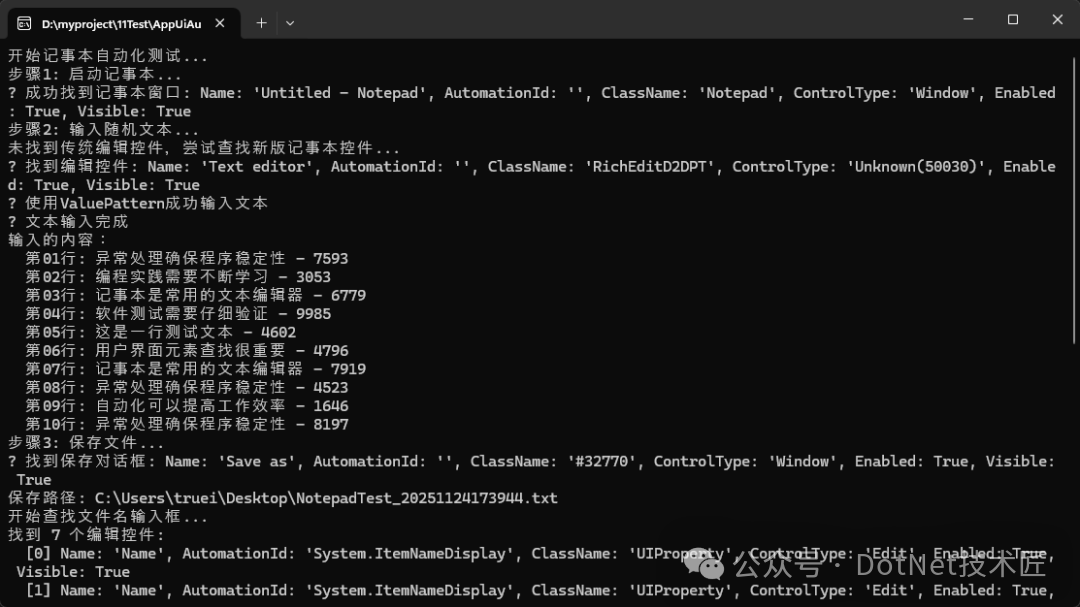
除了记事本,这套方案可广泛应用于:
办公自动化:批量处理 Excel、Word 文档;
开发中需注意三大要点:
一是设置合理超时避免死等;
二是缓存控件引用减少重复查找;
三是采用多策略兼容不同应用版本。
异常处理也至关重要——当 InvokePattern 失败时,可降级为键盘模拟,确保流程不中断。
总结
UI Automation 是解决真实痛点的工程神器。它让 C# 开发摆脱对第三方接口的依赖,在封闭系统中也能实现高效自动化。
本文提供的代码模板经过实战打磨,具备良好的健壮性与扩展性,可直接用于工业软件、测试工具或个人效率脚本。掌握这项技能,意味着可以拥有了"操作任何 Windows 软件"的能力——这在自动化日益发展的时代,是一项不错的技术能力。
关键词
C#、UI Automation、#桌面自动化、#Windows、#记事本、#控件查找、#键盘模拟、#COM组件、#工业软件、#自动化测试
阅读原文:原文链接
该文章在 2026/1/8 10:29:56 编辑过







 400 186 1886