你是否遇到过这样的问题:窗体刚显示就闪退?数据还没加载完用户就能操作界面?窗体关闭时数据丢失?这些都与窗体生命周期的理解不当有关。
作为C#开发者,深入理解Winform窗体生命周期不仅能避免90%的界面bug,还能让你的应用更加流畅稳定。本文将通过实战代码,带你彻底掌握Load、Shown、Closing等关键事件的正确使用方式。
🔍 窗体生命周期全景图
📊 生命周期事件执行顺序
using System.Diagnostics;

namespaceAppWinformLifecycle
{
    publicpartialclassForm1 : Form
    {
        public Form1()
        {
            InitializeComponent();
            // 1. 构造函数 - 最先执行
            Debug.WriteLine("1. Constructor");
        }

        protected override void OnHandleCreated(EventArgs e)
        {
            // 2. 句柄创建 - 窗体句柄被创建
            Debug.WriteLine("2. HandleCreated");
            base.OnHandleCreated(e);
        }

        private void Form1_Load(object sender, EventArgs e)
        {
            // 3. Load事件 - 窗体首次加载
            Debug.WriteLine("3. Load Event");
        }

        protected override void OnShown(EventArgs e)
        {
            // 5. Shown事件 - 窗体首次显示给用户
            Debug.WriteLine("4. Shown Event");
            base.OnShown(e);
        }

        private void Form1_Activated(object sender, EventArgs e)
        {
            // 4. Activated事件 - 窗体获得焦点
            Debug.WriteLine("5. Activated Event");
        }
    }
}
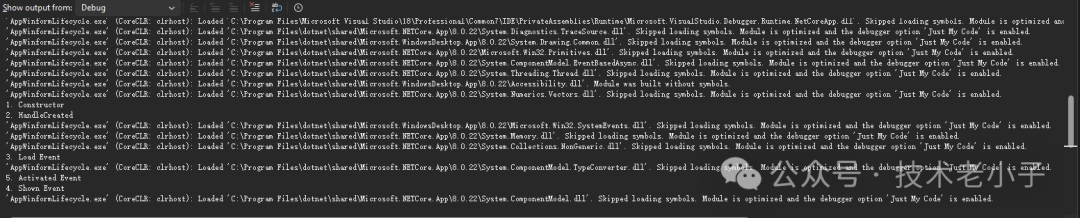
注意:4,5这两个顺序有点意思
💡 核心事件深度解析
🎯 Load事件:数据初始化的黄金时机
最佳实践:在Load事件中进行数据加载、控件初始化等操作。
private async void Form1_Load(object sender, EventArgs e)
{
    try
    {
        // 正确做法:显示加载状态
        ShowLoadingIndicator();

        // 异步加载数据,避免界面假死
        var userData = await LoadUserDataAsync();
        var configData = await LoadConfigAsync();

        // 初始化UI控件
        InitializeDataGridView(userData);
        InitializeSettings(configData);

        // 设置默认值和状态
        SetDefaultValues();
        UpdateUIState();
    }
    catch (Exception ex)
    {
        // 重要:异常处理
        MessageBox.Show($"数据加载失败: {ex.Message}", "错误",
            MessageBoxButtons.OK, MessageBoxIcon.Error);
    }
    finally
    {
        HideLoadingIndicator();
    }
}

// 性能优化技巧:异步数据加载
privateasync Task<List<User>> LoadUserDataAsync()
{
    // 模拟数据库查询
    returnawait Task.Run(() =>
    {
        Thread.Sleep(2000); // 模拟耗时操作
        return GetUsersFromDatabase();
    });
}
🌟 Shown事件:用户体验的关键节点
核心特点:窗体完全显示后才触发,适合需要准确窗体尺寸的操作。
private void Form1_Shown(object sender, EventArgs e)
{
    // ✅ 适合在Shown中执行的操作

    // 1. 窗体位置调整(需要准确尺寸)
    CenterFormOnScreen();

    // 2. 启动定时器或后台任务
    StartPerformanceMonitor();

    // 3. 显示欢迎消息或教程
    ShowWelcomeMessage();

    // 4. 自动聚焦到特定控件
    txtUserName.Focus();
}

// 💡 实用技巧:智能窗体居中
private void CenterFormOnScreen()
{
    // 获取当前显示器工作区域
    Screen currentScreen = Screen.FromControl(this);
    Rectangle workingArea = currentScreen.WorkingArea;

    // 计算居中位置
    int x = (workingArea.Width - this.Width) / 2 + workingArea.X;
    int y = (workingArea.Height - this.Height) / 2 + workingArea.Y;

    this.Location = new Point(x, y);
}
🛡️ FormClosing事件:数据保护的最后防线
关键作用:可以取消关闭操作,是数据保存的最佳时机。
private void Form1_FormClosing(object sender, FormClosingEventArgs e)
{
    // ✅ 检查是否有未保存的数据
    if (HasUnsavedChanges())
    {
        var result = MessageBox.Show(
            "检测到未保存的更改,是否保存后退出?",
            "确认退出",
            MessageBoxButtons.YesNoCancel,
            MessageBoxIcon.Question);

        switch (result)
        {
            case DialogResult.Yes:
                if (!SaveData())
                {
                    e.Cancel = true; // 保存失败,取消关闭
                    return;
                }
                break;
            case DialogResult.Cancel:
                e.Cancel = true; // 用户取消,阻止关闭
                return;
        }
    }

    // ✅ 清理资源
    CleanupResources();
}

// 🔥 最佳实践:优雅的资源清理
private void CleanupResources()
{
    try
    {
        // 停止定时器
        performanceTimer?.Stop();

        // 释放数据库连接
        databaseConnection?.Close();

        // 保存用户偏好设置
        SaveUserPreferences();

        // 写入日志
        Logger.Info("应用程序正常退出");
    }
    catch (Exception ex)
    {
        // 记录但不阻止关闭
        Logger.Error($"资源清理失败: {ex.Message}");
    }
}
🎨 Activated/Deactivated事件:焦点管理专家
private void Form1_Activated(object sender, EventArgs e)
{
    // ✅ 窗体获得焦点时的操作

    // 1. 恢复实时数据刷新
    StartDataRefresh();

    // 2. 检查外部文件更改
    CheckForFileChanges();

    // 3. 更新状态栏
    UpdateStatusBar("窗体已激活");
}

private void Form1_Deactivated(object sender, EventArgs e)
{
    // ✅ 窗体失去焦点时的操作

    // 1. 暂停不必要的刷新(节省性能)
    StopDataRefresh();

    // 2. 自动保存草稿
    AutoSaveData();

    // 3. 更新状态
    UpdateStatusBar("窗体已失活");
}
这两个事件在实际应用中我没有用过
🛠️ 实战应用场景
📱 场景一:带进度条的数据加载窗体
using System;
using System.Threading.Tasks;
using System.Windows.Forms;
using System.Drawing;

namespaceAppWinformLifecycle
{
    publicpartialclassForm1 : Form
    {
        private ProgressBar progressBar;
        private Label statusLabel;
        private Button startButton;
        private ListBox dataListBox;

        public Form1()
        {
            InitializeComponent();
            InitializeCustomComponents();
        }

        private void InitializeCustomComponents()
        {
            // 设置窗体
            this.Size = new Size(500, 350);
            this.Text = "数据加载进度示例";
            this.StartPosition = FormStartPosition.CenterScreen;

            // 状态标签
            statusLabel = new Label
            {
                Text = "准备加载数据...",
                Location = new Point(20, 20),
                Size = new Size(450, 25),
                Font = new Font("Microsoft YaHei", 10)
            };

            // 进度条
            progressBar = new ProgressBar
            {
                Location = new Point(20, 55),
                Size = new Size(450, 25),
                Minimum = 0,
                Maximum = 100,
                Value = 0
            };

            // 开始按钮
            startButton = new Button
            {
                Text = "开始加载",
                Location = new Point(20, 95),
                Size = new Size(100, 30),
                UseVisualStyleBackColor = true
            };
            startButton.Click += StartButton_Click;

            // 数据显示列表
            dataListBox = new ListBox
            {
                Location = new Point(20, 140),
                Size = new Size(450, 150),
                Font = new Font("Microsoft YaHei", 9)
            };

            // 添加控件到窗体
            this.Controls.AddRange(new Control[]
            {
                statusLabel,
                progressBar,
                startButton,
                dataListBox
            });
        }

        private async void StartButton_Click(object sender, EventArgs e)
        {
            await DataLoadForm_Load(sender, e);
        }

        private async Task DataLoadForm_Load(object sender, EventArgs e)
        {
            // 禁用开始按钮,防止重复点击
            startButton.Enabled = false;

            // 清空之前的数据
            dataListBox.Items.Clear();

            // 初始化进度显示
            progressBar.Value = 0;
            statusLabel.Text = "开始加载数据...";
            statusLabel.ForeColor = Color.Blue;

            try
            {
                // 分步骤加载数据
                await LoadDataWithProgress();

                // 完成状态
                statusLabel.Text = "数据加载完成!";
                statusLabel.ForeColor = Color.Green;
            }
            catch (Exception ex)
            {
                HandleLoadError(ex);
            }
            finally
            {
                // 重新启用按钮
                startButton.Enabled = true;
            }
        }

        private async Task LoadDataWithProgress()
        {
            var steps = new[]
            {
                ("加载用户数据...", (Func<Task>)LoadUsers),
                ("加载配置信息...", (Func<Task>)LoadConfig),
                ("初始化界面...", (Func<Task>)InitializeUI)
            };

            for (int i = 0; i < steps.Length; i++)
            {
                // 更新状态文本
                statusLabel.Text = steps[i].Item1;

                // 执行加载步骤
                await steps[i].Item2();

                // 更新进度条
                progressBar.Value = (i + 1) * 100 / steps.Length;

                // 刷新UI(虽然使用async/await通常不需要,但为了确保UI响应)
                Application.DoEvents();

                // 添加小延迟以便观察进度
                await Task.Delay(200);
            }
        }

        private async Task LoadUsers()
        {
            // 模拟加载用户数据
            await Task.Delay(1000); // 模拟网络请求或数据库操作

            // 添加模拟用户数据到列表
            var users = new[] { "张三", "李四", "王五", "赵六", "钱七" };

            foreach (var user in users)
            {
                dataListBox.Items.Add($"用户: {user}");
                await Task.Delay(100); // 模拟逐个加载
                Application.DoEvents();
            }
        }

        private async Task LoadConfig()
        {
            // 模拟加载配置信息
            await Task.Delay(800);

            var configs = new[]
            {
                "数据库连接: 已建立",
                "缓存设置: 已配置",
                "日志级别: INFO",
                "主题设置: 默认"
            };

            foreach (var config in configs)
            {
                dataListBox.Items.Add($"配置: {config}");
                await Task.Delay(80);
                Application.DoEvents();
            }
        }

        private async Task InitializeUI()
        {
            // 模拟初始化UI组件
            await Task.Delay(600);

            var uiComponents = new[]
            {
                "主菜单: 已加载",
                "工具栏: 已初始化",
                "状态栏: 已配置"
            };

            foreach (var component in uiComponents)
            {
                dataListBox.Items.Add($"界面: {component}");
                await Task.Delay(150);
                Application.DoEvents();
            }
        }

        private void HandleLoadError(Exception ex)
        {
            statusLabel.Text = $"加载失败: {ex.Message}";
            statusLabel.ForeColor = Color.Red;

            // 重置进度条
            progressBar.Value = 0;

            // 显示错误对话框
            MessageBox.Show(
                $"数据加载过程中发生错误:\n\n{ex.Message}",
                "加载错误",
                MessageBoxButtons.OK,
                MessageBoxIcon.Error
            );
        }
    }
}

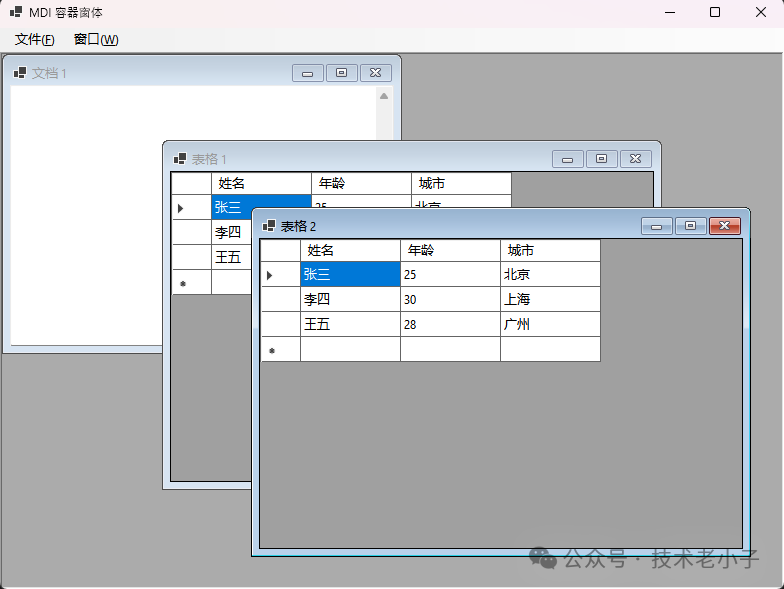
🔒 场景二:MDI容器窗体管理
using System;
using System.Collections.Generic;
using System.Drawing;
using System.Linq;
using System.Windows.Forms;

namespaceAppWinformLifecycle
{
    publicpartialclassForm1 : Form
    {
        private List<Form> childForms = new List<Form>();
        private MenuStrip mainMenu;
        private ToolStripMenuItem windowMenu;

        public Form1()
        {
            InitializeComponent();

            this.Load += Form1_Load;
        }

        private void Form1_Load(object? sender, EventArgs e)
        {
            this.IsMdiContainer = true;
            InitializeMDI();
        }

        private void InitializeMDI()
        {
            // 设置MDI容器窗体
            this.Text = "MDI 容器窗体";
            this.Size = new Size(800, 600);
            this.StartPosition = FormStartPosition.CenterScreen;
            this.WindowState = FormWindowState.Maximized;

            // 创建主菜单
            CreateMainMenu();
        }

        private void CreateMainMenu()
        {
            mainMenu = new MenuStrip();

            // 文件菜单
            var fileMenu = new ToolStripMenuItem("文件(&F)");
            fileMenu.DropDownItems.Add("新建文档", null, (s, e) => CreateChildForm("文档"));
            fileMenu.DropDownItems.Add("新建表格", null, (s, e) => CreateChildForm("表格"));
            fileMenu.DropDownItems.Add(new ToolStripSeparator());
            fileMenu.DropDownItems.Add("退出", null, (s, e) => this.Close());

            // 窗口菜单
            windowMenu = new ToolStripMenuItem("窗口(&W)");
            windowMenu.DropDownItems.Add("层叠", null, (s, e) => this.LayoutMdi(MdiLayout.Cascade));
            windowMenu.DropDownItems.Add("水平平铺", null, (s, e) => this.LayoutMdi(MdiLayout.TileHorizontal));
            windowMenu.DropDownItems.Add("垂直平铺", null, (s, e) => this.LayoutMdi(MdiLayout.TileVertical));
            windowMenu.DropDownItems.Add(new ToolStripSeparator());
            windowMenu.DropDownItems.Add("关闭所有窗口", null, CloseAllChildren);

            // 添加菜单项
            mainMenu.Items.AddRange(new ToolStripMenuItem[] { fileMenu, windowMenu });

            // 设置MDI窗口列表(自动在窗口菜单中显示子窗体列表)
            this.MainMenuStrip = mainMenu;
            this.Controls.Add(mainMenu);
        }

        private void CreateChildForm(string formType)
        {
            Form childForm;

            switch (formType)
            {
                case"文档":
                    childForm = new DocumentForm();
                    break;
                case"表格":
                    childForm = new DataGridForm();
                    break;
                default:
                    childForm = new DocumentForm();
                    break;
            }

            // 设置为MDI子窗体
            childForm.MdiParent = this;

            // 添加到子窗体列表
            childForms.Add(childForm);

            // 订阅子窗体的FormClosed事件
            childForm.FormClosed += ChildForm_FormClosed;

            // 显示子窗体
            childForm.Show();
        }

        private void ChildForm_FormClosed(object sender, FormClosedEventArgs e)
        {
            // 从列表中移除已关闭的子窗体
            if (sender is Form closedForm)
            {
                childForms.Remove(closedForm);
            }
        }

        private void CloseAllChildren(object sender, EventArgs e)
        {
            // 关闭所有子窗体
            var childrenToClose = this.MdiChildren.ToArray();
            foreach (Form child in childrenToClose)
            {
                child.Close();
            }
        }

        private void MDIContainer_FormClosing(object sender, FormClosingEventArgs e)
        {
            // ✅ 逐个检查子窗体是否可以关闭
            foreach (Form childForm inthis.MdiChildren)
            {
                childForm.Close();
                if (!childForm.IsDisposed)
                {
                    e.Cancel = true; // 有子窗体无法关闭
                    MessageBox.Show("无法关闭应用程序,因为有子窗体拒绝关闭。",
                                    "关闭确认", MessageBoxButtons.OK, MessageBoxIcon.Information);
                    return;
                }
            }
        }
    }

    // 简单的文档子窗体
    publicclassDocumentForm : Form
    {
        privatestaticint documentCounter = 1;
        private TextBox textBox;
        privatebool hasUnsavedChanges = false;

        public DocumentForm()
        {
            InitializeComponents();
        }

        private void InitializeComponents()
        {
            this.Text = $"文档 {documentCounter++}";
            this.Size = new Size(400, 300);

            textBox = new TextBox
            {
                Multiline = true,
                Dock = DockStyle.Fill,
                ScrollBars = ScrollBars.Both
            };

            textBox.TextChanged += (s, e) =>
            {
                hasUnsavedChanges = true;
                if (!this.Text.EndsWith(" *"))
                    this.Text += " *";
            };

            this.Controls.Add(textBox);
        }

        protected override void OnFormClosing(FormClosingEventArgs e)
        {
            if (hasUnsavedChanges)
            {
                var result = MessageBox.Show(
                    $"文档 '{this.Text}' 已被修改,是否保存?",
                    "保存确认",
                    MessageBoxButtons.YesNoCancel,
                    MessageBoxIcon.Question);

                switch (result)
                {
                    case DialogResult.Yes:
                        // 模拟保存操作
                        MessageBox.Show("文档已保存!", "保存", MessageBoxButtons.OK, MessageBoxIcon.Information);
                        hasUnsavedChanges = false;
                        break;
                    case DialogResult.Cancel:
                        e.Cancel = true; // 取消关闭
                        return;
                    case DialogResult.No:
                        // 不保存,直接关闭
                        break;
                }
            }

            base.OnFormClosing(e);
        }
    }

    // 简单的数据表格子窗体
    publicclassDataGridForm : Form
    {
        privatestaticint gridCounter = 1;
        private DataGridView dataGridView;

        public DataGridForm()
        {
            InitializeComponents();
        }

        private void InitializeComponents()
        {
            this.Text = $"表格 {gridCounter++}";
            this.Size = new Size(500, 350);

            dataGridView = new DataGridView
            {
                Dock = DockStyle.Fill,
                AutoGenerateColumns = true
            };

            // 添加示例数据
            dataGridView.Columns.Add("Name", "姓名");
            dataGridView.Columns.Add("Age", "年龄");
            dataGridView.Columns.Add("City", "城市");

            dataGridView.Rows.Add("张三", "25", "北京");
            dataGridView.Rows.Add("李四", "30", "上海");
            dataGridView.Rows.Add("王五", "28", "广州");

            this.Controls.Add(dataGridView);
        }
    }
}
⚠️ 常见坑点与解决方案
🕳️ 坑点一:在Load事件中直接操作控件尺寸
// ❌ 错误做法:Load时控件可能还未完全显示
private void Form_Load(object sender, EventArgs e)
{
    // 此时获取到的尺寸可能不准确
    int width = this.Width;
    ResizeControls(width); // 可能出现布局问题
}

// ✅ 正确做法:在Shown事件中操作
private void Form_Shown(object sender, EventArgs e)
{
    // 此时窗体已完全显示,尺寸准确
    int width = this.Width;
    ResizeControls(width);
}
🕳️ 坑点二:忘记处理异步操作的异常
// ❌ 危险做法:异步操作缺少异常处理
private async void Form_Load(object sender, EventArgs e)
{
    var data = await LoadDataAsync(); // 可能抛出异常
    DisplayData(data);
}

// ✅ 安全做法:完善的异常处理
private async void Form_Load(object sender, EventArgs e)
{
    try
    {
        var data = await LoadDataAsync();
        DisplayData(data);
    }
    catch (OperationCanceledException)
    {
        // 操作被取消
        this.Close();
    }
    catch (Exception ex)
    {
        Logger.Error(ex);
        ShowErrorMessage(ex.Message);
    }
}
🎯 总结与最佳实践
掌握Winform窗体生命周期的三个关键要点:
- 1. 🎪 分工明确:Load负责数据加载,Shown负责UI最终调整,Closing负责资源清理
- 2. ⚡ 性能至上:使用异步操作避免界面假死,合理利用Activated/Deactivated节省资源
- 3. 🛡️ 稳定可靠:完善的异常处理机制,确保用户数据安全和应用稳定性
记住这句话:"好的窗体生命周期管理,是用户体验和应用稳定性的基石"。
阅读原文:原文链接
该文章在 2026/1/9 15:16:48 编辑过






 400 186 1886